USB is enough if a supported pen-input data connection comfortably reaches your drawing position. Bluetooth is worth considering when removing that cable solves a placement problem—and you accept the compatibility checks, pairing, and recharging it brings.
These are connection choices, not necessarily separate kinds of tablet. A model may offer both. Neither label establishes better drawing performance or tells you whether the device can work without a computer.
What USB, Bluetooth, and wireless actually establish
A USB listing does not rule out Bluetooth. Wacom documents USB and Bluetooth modes for its Intuos CTL-4100WLx and CTL-6100WLx families, including CTL4100WLK0 and CTL6100WLK0. Its pairing and mode-switching instructions apply to those WL variants, not every Intuos model or bundle.
Receiver-based wireless is not evidence of Bluetooth. XPPen's original Deco mini7W specifications describe 2.4 GHz wireless and include a wireless receiver; the same page separately labels Deco mini7W V2 with Bluetooth 5.0. That establishes a version distinction, not the V2's complete host compatibility or setup requirements.
Bluetooth does not by itself establish standalone operation. The documented Intuos WL Bluetooth setup still connects the tablet to a host computer. Wacom's general buying guidance distinguishes standalone devices that work without another connected device. If you want to draw without a separate computer, that is a different requirement from removing the input cable.
For the 7 x 4 inch Graphic Tablet, listed as Deco mini7W, confirm the exact version and its connection specifications with the seller. The listing's Deco mini7W name and Bluetooth wording do not resolve its original-versus-V2 identity, so do not treat it as a confirmed Bluetooth choice until that is settled.
Check whether USB fits your actual desk
Check the setup where you intend to draw, not just the distance between the tablet and computer:
- Choose the tablet position. Allow for how you normally move or reposition it while working.
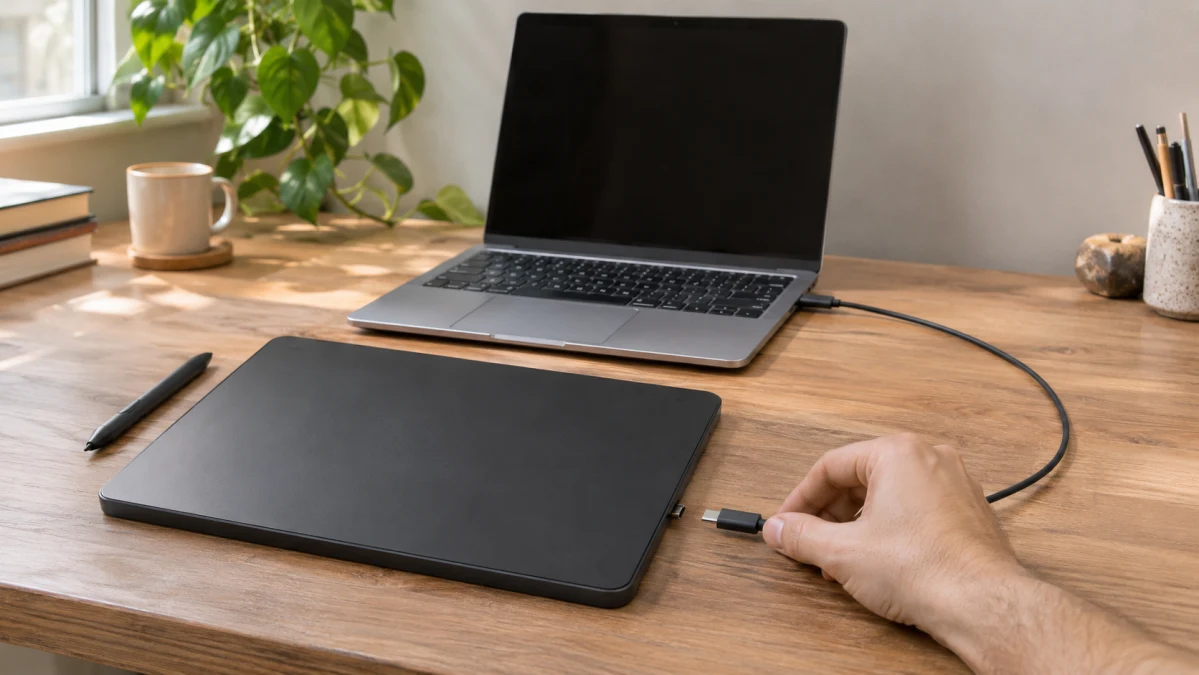
- Trace the cable route. Account for the path around your keyboard, monitor, and other desk items. Compare that route with the actual cable length, leaving room for movement without pulling it tight or creating an obstruction.
- Identify an available computer port. Verify the supported pen-input data connection for the exact tablet, cable, and host—not merely whether the connectors fit.
- Check any extra hardware. Confirm the seller's package contents and complete connector requirements. If you need an extension or adapter, verify that specific arrangement rather than assuming it will carry pen-input data.
Charging power is not the same as a computer data connection. For the Intuos WL families, Wacom's charging instructions allow connection to a computer or power adapter. A nearby outlet may therefore provide charging without establishing an input-data path to your computer.
If the verified data connection reaches comfortably and you do not need cable-free input, USB meets the connection requirement. If the route blocks your preferred tablet position, cable-free input is worth considering. The deciding factor is your actual arrangement, not an assumption that a cable is always troublesome or always sufficient.
Check the host, pairing process, and charging routine
Before choosing Bluetooth, verify pen-input support for the exact tablet variant, intended host, operating system and version, host Bluetooth capability, and applicable driver or setup requirements. Check current Windows or macOS requirements for the intended connection mode rather than relying only on a general operating-system list.
For CTL-4100WLx and CTL-6100WLx, Wacom's computer pairing sequence is to disconnect USB, enable Bluetooth on the computer, make the tablet discoverable, and select Pair. Removing the input cable means accepting that setup step and managing the tablet's battery.
Wacom also provides a Chromebook-specific pairing procedure for these WL families. That is not a guarantee for every Chromebook: confirm the applicable Chrome OS version and your particular configuration before buying.
For a newly received WL tablet, Wacom recommends charging before planned Bluetooth use through the included USB cable connected to a working computer. Confirm what the individual seller package includes. Subsequent charging can use a computer or power adapter.
Wacom documents switching between USB and Bluetooth for these WL variants; that is not an automatic fallback promise for every Bluetooth tablet. Nor do those instructions establish battery runtime or pen-input operation during charging. If your routine depends on long cable-free sessions or drawing while recharging, confirm those capabilities before buying. Bluetooth fits someone willing to pair the tablet and plan charging, not someone whose required host support or power routine remains unresolved.
When USB-connected pen input is enough
Choose USB when cable-free input is unnecessary and the desk check confirms a comfortable, supported computer data connection. A tablet that stays within a workable cable route does not need Bluetooth to solve its placement needs.
You also do not have to buy a tablet without Bluetooth to use it this way. Connection mode and product choice are separate decisions.
The Intuos Medium Graphics Drawing Tablet, CTL6100WLK0, and the Small Graphics Drawing Tablet, CTL4100WLK0, belong to Wacom's documented dual-mode WL families. Either illustrates a USB-first setup without being a USB-only tablet.
For a fixed drawing position with verified cable reach, their Bluetooth mode is optional rather than necessary. Choose the size separately from the connection decision, and check the actual package and cable arrangement against the desk checklist. USB sufficiency here is not a claim of better latency, accuracy, reliability, or value.
When cable-free input makes Bluetooth worth considering
Consider Bluetooth when you require cable-free pen input or the verified cable route obstructs your intended placement—provided the host and charging checks pass. The benefit is removing the input cable from that arrangement; the cost is accepting pairing and tablet recharging.
That trade-off makes sense only if the readiness checks fit your computer and working routine. Bluetooth still connects these pen tablets to a host; it does not turn them into standalone drawing computers.
The Intuos Medium Graphics Drawing Tablet, CTL6100WLK0, and Small Graphics Drawing Tablet, CTL4100WLK0, illustrate this choice because Wacom documents Bluetooth pen input for their WL families. They suit a buyer who needs placement without the USB input cable while continuing to use a compatible paired computer. Their size labels do not settle host compatibility.
The supplier describes a battery-free Wacom Pen 4K with both products. That describes the pen, not the tablet: Wacom's tablet charging requirements still apply. Do not let “battery-free” obscure the power routine you are agreeing to manage.
If you do not need cable-free input and a verified USB data setup fits your desk, USB is enough. If cable-free input is required, consider Bluetooth only after confirming the exact variant, host, operating system, and setup requirements—and accepting pairing and recharging. An unsuitable USB route can constrain placement; an unchecked Bluetooth configuration may not work with your intended host or fit your charging routine. If those conditions cannot be confirmed or accepted, resolve the unmet requirement before buying rather than forcing a winner.