
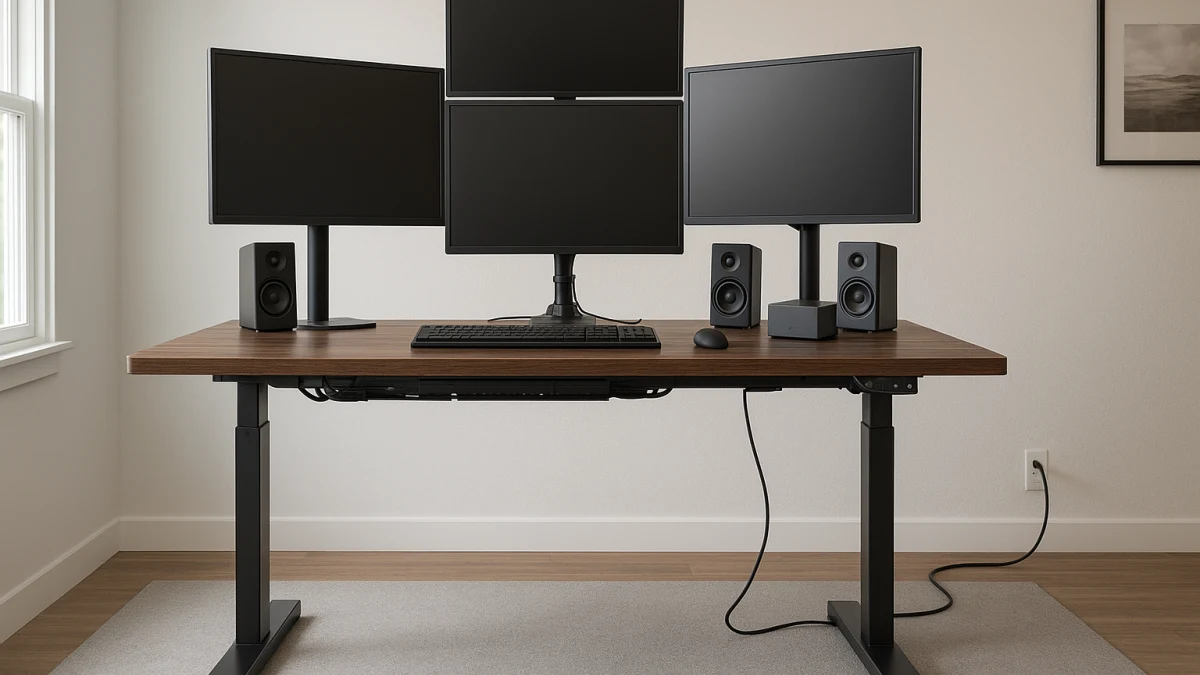
A heavy monitor setup can fail in three different ways: the desk may not have enough lift headroom for the full moving load, it may lift the load but feel shaky at standing height, or the cables may pull tight as the desktop rises. This guide is built around those failure points rather than around a generic standing-desk list.
Use the product sections below as a sequence: count the full desktop load first, inspect stability-related construction next, and finish by checking cable travel through the complete height range. That means looking beyond monitor count to the desktop surface, monitors, tower, speakers, docking station, mounted accessories, frame design, steel construction, grommets, outlets, USB ports, and cable slack.
Choose by the failure point: lift, shake, or cable travel
| If this sounds like your setup | Better fit to compare first |
|---|---|
| Multiple monitors, an ultrawide display, a desktop tower, speakers, or a docking station all ride on the desk. | High-capacity electric standing desk |
| Your main concern is monitor shake, typing wobble, or comfort at higher working positions. | Stability-focused standing desk |
| Several powered devices, charging cables, or display connections need to move cleanly with the desktop. | Cable-management-friendly standing desk |
| You are mainly shopping for a monitor arm, display, desktop computer, separate cable tray, desk converter, or gaming desk outside the standing-desk category. | Out of scope here; use this page only to evaluate standing desks. |
When comparing desks, keep six checks in mind: total moving load versus stated capacity, motor and frame load language, practical stability at working height, desktop size and equipment placement, cable path through the full adjustment range, and any claim that would need outside proof. A 220 lb-class capacity, dual-motor listing, or 4-leg frame can help you shortlist options, but those details do not replace checking wobble risk, load distribution, or cable clearance.
Count the moving load before comparing capacities
Do not compare standing desks by monitor count alone. The moving load includes the desktop surface, monitors, desktop tower if it sits on the desk, speakers, docking station, monitor mounts, lamps, and any other mounted accessories.
Frame-only products need extra attention because the tabletop is part of the load calculation. If a sit-stand frame lists a maximum load, the desktop you add uses some of that allowance before any equipment is added. A large tabletop can also move weight farther from the center of support, which may matter even when the stated capacity looks high.
What stays out: arms, trays, converters, and displays
This collection is limited to standing desks and standing-desk frames. It is not a monitor-arm guide, cable-tray accessory guide, display guide, desktop-computer guide, desk-converter guide, or a guide to non-standing gaming desks.
Those products can still affect your setup, but they should be evaluated separately. For example, a monitor arm may change load placement, and a separate cable tray may improve routing, but neither turns a desk into the right fit if the desk itself lacks the load, frame, or clearance characteristics you need.
Proof threshold for heavy-load and stability claims
Treat manufacturer-stated capacity and construction details as the starting point. Load ratings, motor descriptions, anti-collision features, outlet details, and USB-port information should be checked on the product page before purchase.
Avoid reading more into a listing than it actually says. A desk should not be treated as certified, safest, strongest, or most stable unless the product page provides the relevant official documentation, standard, or comparable testing. Anti-collision language is useful to notice, but it is not the same as a safety certification by itself.
Start with lift headroom, not monitor count
For a heavy workstation, the first question is whether the electric desk can raise the full load: desktop plus equipment. Dual-motor language, a stated 220 lb-class load capacity, 4-leg construction, and heavy-duty electric sit-stand frame wording are useful catalog cues for heavier setups.
This lane is for shoppers with multiple displays, ultrawide monitors, a tower on the desk, larger speakers, docking stations, or mounted accessories. It is also the first place to look if you are considering a frame-only product, because the desktop weight must be counted before the monitors and gear.
Read the products shown here as capacity-qualified candidates, not as automatic answers. A 220 lb listing or dual-motor frame can make a desk worth comparing, but it does not prove that your exact monitor-arm layout, desktop size, or tower placement is supported. If the desk appears to have enough lift headroom, move next to stability before treating it as a fit.
Capacity is not a wobble test
A common mistake is buying from the headline weight rating alone. Capacity tells you what the manufacturer says the desk can lift; it does not tell you how the workstation will feel while typing, adjusting height, or working at a higher standing position.
Watch for three wrong-choice patterns: choosing the highest-looking load number while ignoring frame design, assuming dual motors automatically prevent monitor shake, or placing heavy gear at the edges of a large desktop without thinking about distribution. If wobble is the complaint you are trying to avoid, the next comparison should focus on construction.
Then pressure-test frame stability
After the desk looks plausible for the load, inspect the frame. T-shaped frames, reinforced legs, thickened steel pipe, industrial-grade steel, automotive-grade steel, heavy-duty steel, and one-piece desktop construction are more specific than generic “sturdy” wording.
This section is for shoppers whose pain point is monitor shake, typing wobble, or discomfort at standing height. Frame design, leg construction, desktop construction, assembly quality, floor level, height range, and load distribution can all affect how solid the desk feels in use.
Anti-collision features are worth noticing on motorized desks, but do not treat them as proof of BIFMA, ANSI, UL, or other certification unless the product page provides official support for that claim.
Use these products to compare construction language after you have narrowed by load needs. A desk with reinforced legs or a T-shaped steel frame may be more relevant than a feature-heavy desk if daily stability is the priority. If your setup is still undercounted on total load, go back to the capacity lane before deciding.
Cable routing is still a desk-fit question
Cable management belongs in this guide only when it is built into the standing desk or directly attached to the moving desktop. Integrated cable clips, trays, hooks, grommets, outlets, USB-A or USB-C ports, and clamp-on power strips can help organize a heavy workstation, but they do not replace checking the desk’s lift capacity or frame behavior.
This is also where false friends appear. A separate cable tray, standalone power strip, monitor arm, or display cable may be part of your final setup, but this page is not ranking those accessories. The question here is whether the desk itself gives you a practical path for cords to travel from seated height to standing height.
Finish with cable travel and power routing
Cable-friendly standing desks are most useful when several powered devices need to move with the desktop. Look for built-in cable clips, cable trays, grommets, power outlets, USB ports, or clamp-on power strips, then check whether the cord path has enough slack from the lowest seated height to the highest standing height.
Read this final lane as a clearance check, not a substitute for capacity or stability. Built-in outlets or USB ports should be checked for placement and product-page specifications; they should not be assumed to support every electrical load or prevent every snag. If a desk looks clean but cords would pull tight during adjustment, it is not a good fit for a heavy powered setup.
Final full-height clearance check
Before treating any standing desk as a fit for a heavy monitor setup, run through this checklist:
- Confirm the manufacturer-stated load capacity for the exact model.
- Count the desktop surface as part of the moving load, especially with frame-only products.
- Add the weight of monitors, tower, speakers, docking station, lamps, monitor mounts, and other mounted accessories.
- Check whether the listing shows load-related cues such as dual motors, 220 lb-class capacity, 4-leg construction, or heavy-duty sit-stand frame language.
- Inspect stability-related construction details such as T-shaped frames, reinforced legs, thickened steel, steel-frame language, or one-piece desktop construction.
- Think about where the weight will sit on the desktop, not just the total number of pounds.
- Trace every cable from wall power to the moving desktop at the lowest seated height and the highest standing height.
- Verify cord length, outlet placement, USB-port details, grommet location, and whether clips or trays keep cables clear during adjustment.
- Do not rely on claims such as certified, safest, strongest, or most stable unless the product page provides the documentation needed to support them.
A good match for a heavy setup is not just the desk with the biggest number in the listing. It is the desk whose capacity, frame construction, desktop layout, and cable path all work together through the full sit-stand range.