
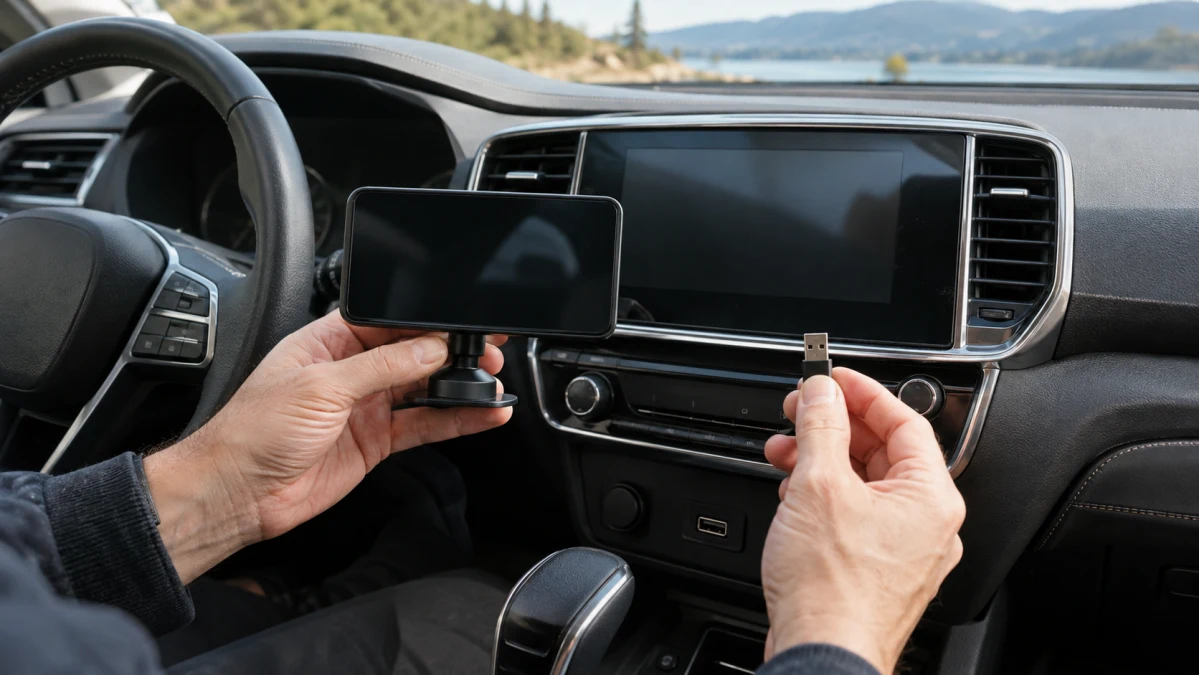
A portable CarPlay or Android Auto screen and a wireless adapter solve different problems. The screen adds somewhere to use your phone’s maps, music and calls. The adapter changes the connection to a compatible system already in the car.
That distinction matters more than screen size or a “Wi-Fi 6” badge. Before buying either, establish what your car can already do—and whether the inconvenience is a missing feature or simply a cable.
Check the system you already have
Start with the manual for your exact US model year, trim and infotainment system. Identify the USB port intended for CarPlay or Android Auto, then connect your phone with a suitable data cable while parked. You want to see the actual phone interface on the car’s screen, not just a charging indicator. As Google’s troubleshooting guidance explains, having a USB port does not establish Android Auto compatibility.
Also check whether you already have wireless support. Apple’s CarPlay setup instructions distinguish between wired, wireless and dual-mode systems; some cars offer to enable future wireless connections after an initial USB connection. For Android Auto, check the car’s manual alongside Google’s wireless setup instructions. You may not need another device.
If a wired connection should work but does not, troubleshoot that first. Buying an adapter before establishing a working connection leaves you trying to diagnose the phone, cable, car and adapter at the same time.
A portable screen: useful capability, visible installation
A separate display is worth considering when your existing stereo cannot show the phone interface you need. But choose it as something you will mount and live with, not just a larger rectangle in a product photo. Placement, power and sound deserve as much attention as the diagonal measurement.
Heise’s November 2024 review of the YH-H505 describes a 10.26-inch display with wireless CarPlay and Android Auto, powered from a 12-volt accessory socket. Its tested package included an adhesive dashboard stand, and the housing was 245 × 97 mm—about 9.6 × 3.8 inches. The reviewer also found a reflective screen, no automatic brightness adjustment and a manually selected night mode.
Before ordering, make a cardboard outline of the housing and hold it at the proposed mounting position, allowing for the stand’s height. Sit in your normal driving position. Can you see the road and instruments without looking around it? Can you reach essential controls? Plan the power-cable route, too, keeping it clear of controls and airbag deployment areas.
Check the exact mount included with the unit you are buying. Product photos showing several mounting options do not tell you which accessories are in that particular package. During the return period, assess readability in daylight and comfortable brightness after dark, with the car parked.
Decide how the sound will reach you
In the H505 review’s audio tests, the reviewer used an AUX cable or the display’s FM transmitter to feed the car radio. AUX produced interference until an inline noise filter was added; FM output was quieter. Those results describe that setup, not a guaranteed outcome in your car.
For your installation, verify that the radio has the input you intend to use. Ask explicitly whether any advertised Bluetooth feature sends audio to the car stereo or merely connects the phone to the display. Before committing, establish how you will hear music, navigation prompts and calls—and how the person at the other end of a call will hear you.
Treat phone navigation and standalone navigation as separate features. Android Auto uses apps from your phone; its logo is not a promise that the display contains independent maps. For trips through coverage gaps, prepare maps on the phone beforehand. Google Maps can use downloaded areas for driving directions, provided the whole route is covered, but offline navigation lacks live traffic information and alternative routes.
A wireless adapter: keep the screen, change the connection
An adapter makes sense when you like the existing display and want to stop plugging in your phone for every trip. The important purchase question is precise: does this adapter support the wired system in your car and the phone you will use?
Do not assume that “CarPlay and Android Auto” means every combination of car and phone works. Ask what the adapter requires on the car side and what it supports on the phone side.
TVCMALL’s listing for the white CP025 describes a USB adapter that retains the factory radio and converts wired CarPlay to wireless CarPlay, or wired Android Auto to wireless Android Auto.
There is an important ambiguity, however: the same listing’s compatibility note says the car must have factory-installed CarPlay. That does not clearly establish support for an Android Auto-only system. Get written confirmation for your exact vehicle and infotainment unit before buying it for that use; otherwise, choose hardware with clearer compatibility documentation.
The seller lists iPhone 6 or later with iOS 10 or later, or Android 11 or later, and excludes Huawei EMUI phones. It also excludes BMW, Tesla and some other unspecified vehicle models. These are restrictions in this particular listing, not universal rules for wireless adapters. Its advertised compatibility percentage is no substitute for checking your car.
For Android phones, also check Google’s wireless Android Auto requirements, including 5 GHz Wi-Fi support. Working over USB does not, by itself, establish that the phone meets the requirements for wireless operation.
Before ordering, confirm the exact product version, where its setup and firmware instructions are available, and whether incompatibility qualifies for a return. A seller’s promise of automatic reconnection is useful only if it works consistently in your car.
Wireless does not take care of charging
Removing the phone’s data cable does not provide charging power. An iPhone still needs a charging cable or compatible wireless charger; plan equivalent charging for the Android phone you use.
That changes the value calculation. For short errands, avoiding repeated plugging and unplugging may be the whole attraction. For longer drives, consider whether you will connect a charging cable anyway. Wireless can still be convenient, but it is not automatically a tidier or simpler arrangement.
Keep a known-working cable in the car when using an adapter, so you can return to the original wired connection if necessary.
Make the return period count
Complete pairing and initial checks while parked, as Google recommends for Android Auto setup. Do not stop after the first successful connection: check several ordinary restarts, music playback, spoken directions and a two-way call. Test any steering-wheel controls you rely on. In a shared car, try both drivers’ phones and establish how to switch between them.
Choose the portable screen when it supplies a genuinely missing interface and you have a workable mounting and audio arrangement. Choose an adapter when your existing system is suitable and the phone cable is the inconvenience you want to remove. If plugging in already works well for you, buying neither is a reasonable decision.