
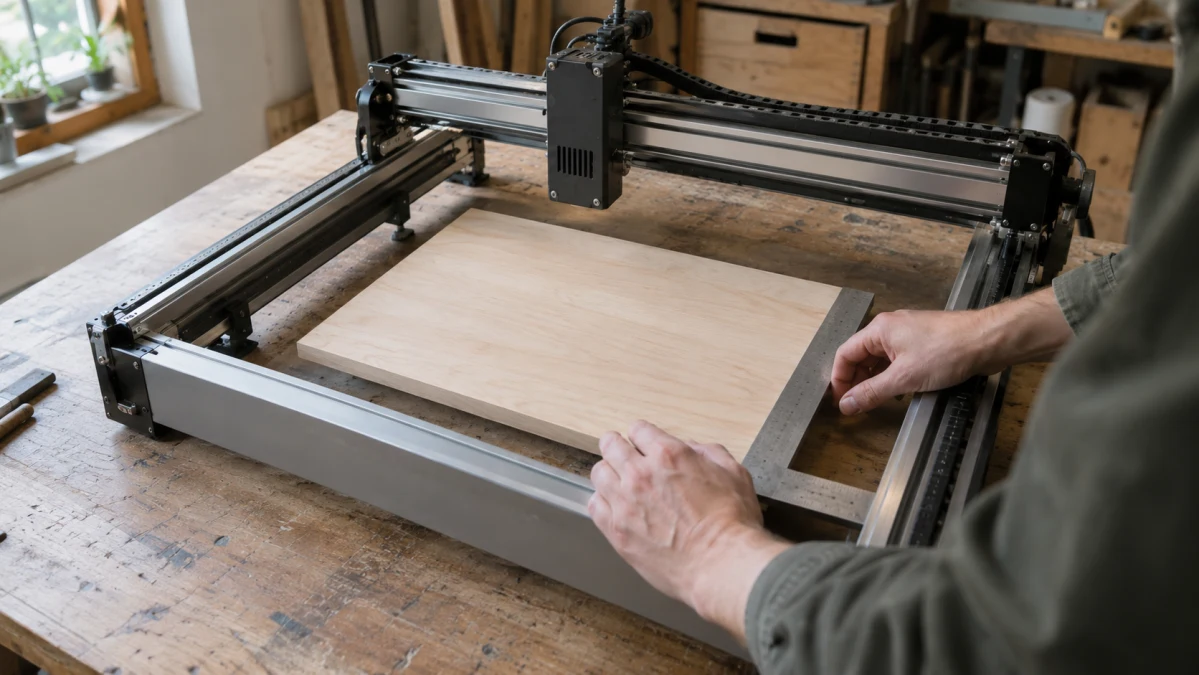
Working area sounds like a simple spec, but it answers only one question: how much surface the laser can reach. It does not tell you how large the machine is on your bench, and it does not necessarily tell you the maximum size of the material you can place under it.
For a flat engraving job, start with the width and height of the artwork the laser actually needs to cover. Then allow whatever extra room you need for positioning, a jig, or repeatable alignment. Separately, make sure the physical workpiece can fit under or inside the machine.
A 90 × 90 mm design, for example, technically sits inside a 100 × 100 mm field, but it leaves only 10 mm of spare travel on each axis—about 5 mm per side if centered. That is a much tighter fit than the numbers first suggest.
100 × 100 mm: compact, but with little room for error
LONGER lists the Nano Pro 12W with a standard 100 × 100 mm working area. That is enough for genuinely small engraving jobs, but projects approaching 100 mm in either direction leave very little freedom for repositioning.
LONGER also lists a 100 × 300 mm working area when its slide extension is used. That extension changes what the machine can handle in one direction, but the other axis remains limited to 100 mm. In other words, it can help with long, narrow designs; it does not turn the machine into a 300 × 300 mm engraver.
The Nano Pro also uses a different mechanical approach from a conventional moving-head frame engraver: its published specifications describe a galvanometer-based laser system. That makes the 100 × 100 mm field more than just a smaller version of a large frame machine—the two designs are aimed at different kinds of work.
The seller lists Smart Laser Engraver with a 100 × 100 mm engraving area, but the listing does not establish that it is the LONGER Nano Pro 12W. Do not assume LONGER's laser power, optics, software support, accessories, or extension options apply to this product unless the seller confirms the exact manufacturer and model.
If your design is close to 100 × 100 mm, also ask whether those figures describe the full usable engraving field in the configuration being sold. A nominal 100 × 100 mm specification is not much comfort if your job itself is 98 or 100 mm wide and your setup needs additional positioning room.
300 × 300 mm gives substantially more flexibility
AtomStack specifies a 300 × 300 mm working area for the Swift 12W. That is three times the travel in each direction—and nine times the nominal working area—of a 100 × 100 mm field.
The practical difference is significant. A job requiring 190 × 130 mm of laser travel simply cannot fit inside a standard 100 × 100 mm field, while it sits comfortably inside a nominal 300 × 300 mm workspace. The additional room also makes positioning less critical when the artwork itself is much smaller than the maximum field.
Unlike the compact galvo-style Nano Pro, the Swift is a frame-style engraver that moves the laser module across the work area. The larger workspace is the more important advantage here if your priority is engraving wider flat pieces rather than keeping the marking field very small.
The seller's Swift 12W Laser Engraver listing gives the work area only as “300, 300” and does not identify a brand in the supplied information. That is not enough to assume it is the AtomStack Swift 12W or that the figures are millimeters. Before buying it for a size-critical project, confirm the units, exact model, standard configuration, and usable engraving dimensions.
See what actually fits
These examples compare the space the laser needs to cover with the manufacturers' published standard working areas.
| Required engraving footprint | 100 × 100 mm field | 300 × 300 mm field | Practical result |
|---|---|---|---|
| 90 × 90 mm | Fits, but tightly | Fits easily | A 100 mm machine may be enough if positioning does not require much extra room. |
| 190 × 130 mm | Does not fit | Fits | You need the larger standard field. |
| 320 × 90 mm | Does not fit | Does not fit | Neither standard field is large enough on both axes. |
Always compare both dimensions. Having spare room on one axis cannot compensate for exceeding the other, and rotating the artwork helps only when the swapped width and height both fall within the machine's limits.
Also distinguish the engraving footprint from the size of the material itself. A larger board may sometimes extend beyond the nominal work area if the machine's physical design allows it, while the laser engraves only a smaller section. Conversely, a piece whose artwork fits numerically may still be awkward or impossible to position because of the frame, fixtures, focus distance, or other physical obstructions.
Treat the published maximum as a limit, not a target
Software cannot create additional mechanical or optical range. LightBurn's documentation says its Working Size setting represents the machine's working dimensions and changing it does not change the laser itself.
For supported machines, framing is useful for checking where a job will run before engraving. LightBurn describes framing as tracing the area around the planned output. It is a positioning check, not a way to make an oversized project fit.
That distinction matters most near the limit. If you routinely expect to engrave around 90 × 90 mm, a nominal 100 × 100 mm field may work, but it gives you little margin. If your projects regularly extend beyond 100 mm in either direction, a 300 × 300 mm class machine is much less restrictive. And if a job itself exceeds 300 mm on either axis, neither standard configuration should be treated as suitable merely because an accessory or similarly named model exists.
Before buying, verify the exact machine and configuration, the units used for its published working area, and whether your required laser path fits on both axes with enough room for the way you intend to position the workpiece. That check is more useful than relying on a “100 × 100” or “300 × 300” label alone.